Background Mode Guide
Background Mode keeps Beat Watcher monitoring your heart rate even when your wrist is down, you are using another app, or your Apple Watch display is off. Threshold alerts continue working with haptic vibration and audio.
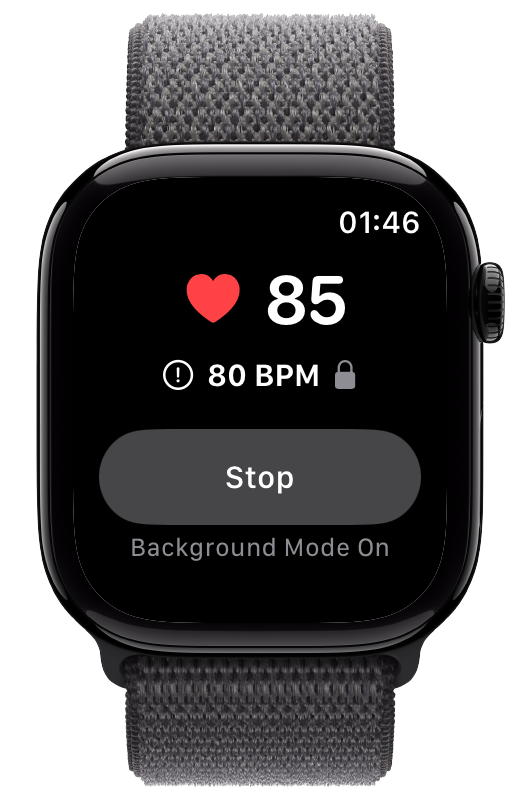
Background Mode keeps Beat Watcher monitoring your heart rate even when your wrist is down, you are using another app, or your Apple Watch display is off. Threshold alerts continue working with haptic vibration and audio.
Launch Beat Watcher on your Apple Watch. You’ll see your current heart rate and threshold.
Tap the “Start” / “Background Mode” button at the bottom of the screen. The first time, your Apple Watch will ask for permission to write workout data to Health.
The button changes to “Stop” and the status shows “Background Mode On.” Alerts will now work continuously, even when your wrist is lowered.
Your heart rate is tracked continuously rather than in periodic snapshots. This means alerts fire within seconds of crossing your threshold.
A lock icon appears next to your threshold to prevent accidental Digital Crown adjustments while wearing the watch. Turn off Background Mode to change your threshold.
Heart rate data will be saved to the Health app, but a Workout is never saved.
If you have Phone Alerts enabled in the companion iPhone app, threshold crossings in Background Mode will also trigger notifications on your phone.
Background Mode uses more battery because it maintains continuous heart rate monitoring. The impact varies by Apple Watch model. Turn it off when you do not need continuous monitoring.
Background Mode will not work while you are recording a Workout with another app. For example, if you start Background Mode for Beat Watcher then start an Outdoor Run Workout, Beat Watcher will not continue running in the background. If you need heart rate alerts during exercise, start your session from Beat Watcher.
Your Apple Watch may periodically return to the Beat Watcher screen while Background Mode is active. To stay on your watch face or another app, go to the Watch app on iPhone → General → Return to Clock → turn off “Return to App.”
Background Mode combined with Phone Alerts and Critical Alerts mode makes Beat Watcher useful for overnight heart rate monitoring. You can set thresholds and receive alerts on your iPhone even through Do Not Disturb.
A sleeping heart rate persistently above 100 BPM may indicate untreated sleep apnea, anxiety, or other conditions. Set your high threshold accordingly and let Background Mode monitor while you sleep.
Heart rate naturally dips during sleep (typically 40–60 BPM). Set a low threshold to catch drops below your safe range, especially if you are on rate-control or beta-blocker medications.
Tip: Enable Critical Alerts in Phone Alert settings so nighttime threshold crossings reach your iPhone through Do Not Disturb. This is the only way to receive a sound notification while your phone is silenced overnight.
Requires Apple Watch Series 3 or newer (watchOS 8+).

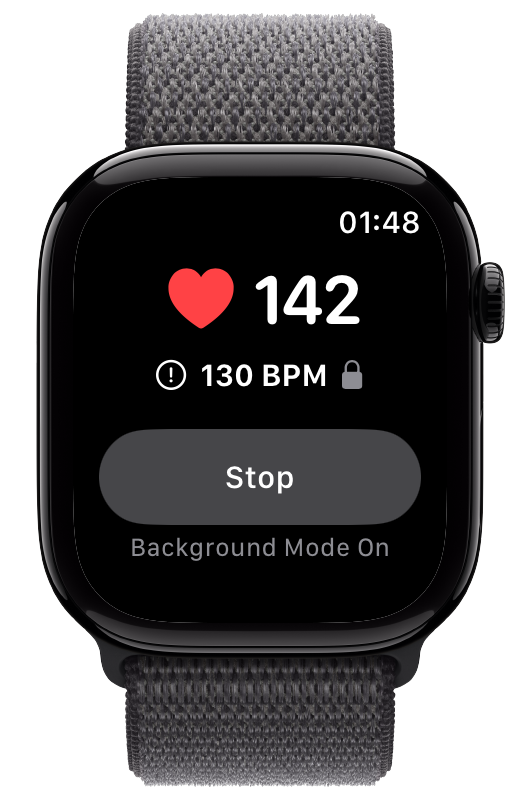
Yes, Background Mode uses more battery than normal because it keeps a workout session active to maintain continuous heart rate readings. Battery impact varies by watch model. You can turn it off when you do not need continuous monitoring to conserve battery.
No. Background Mode starts a workout session on Apple Watch. watchOS only allows one active workout at a time. If you need heart rate alerts during exercise, start your session from within Beat Watcher instead of another workout app.
When Background Mode is active, a lock icon appears next to your threshold. This prevents accidental changes from the Digital Crown while you are wearing the watch. To adjust your threshold, turn off Background Mode first, make your change, then turn it back on.
No. Although Background Mode uses a workout session internally to maintain continuous heart rate access, it does not save a workout record to Apple Health or the Fitness app. Your heart rate readings are saved to Apple Health as normal.
Related: Phone Alerts Guide · POTS Heart Rate Monitor · ME/CFS Pacing